After creating your blog, you may be wondering what comes next. In this guide, I’ll show you in clear, simple steps how to publish a blog post on WordPress.
Starting with blogging or WordPress can feel overwhelming at first, but that’s normal. Most people are new to blogging and need to learn a few basics. You don’t need to be highly technical to get started — I learned along the way, and you can too.
If you haven’t launched your blog yet, consider following a beginner-friendly tutorial first to set up your site and hosting. Once your site is ready, publishing posts is straightforward.
Below are easy-to-follow steps to create, format, preview, and publish your first WordPress post.
Related resources on creating a blog:
- How To Start A Blog Free Course
- How To Earn Money Blogging: Your Top Questions Answered
- How To Start A WordPress Blog On Bluehost
- 12 Free Resources To Grow Your Blog Fast
How to publish a blog post on WordPress
Step 1: Open your WordPress dashboard
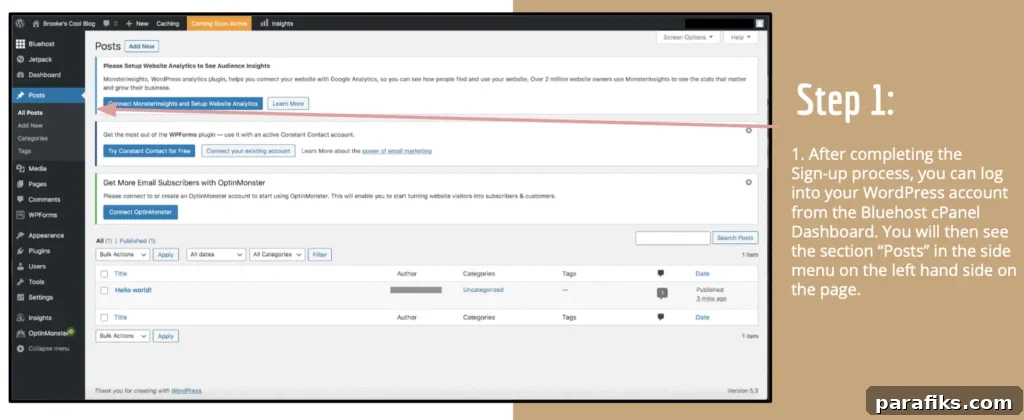
After completing your sign-up and setup, log into WordPress from your hosting control panel or directly via your site’s login page. Once inside the dashboard, look for the “Posts” menu in the left-hand sidebar — that’s where you’ll manage and create posts.
Step 2: Create a new post
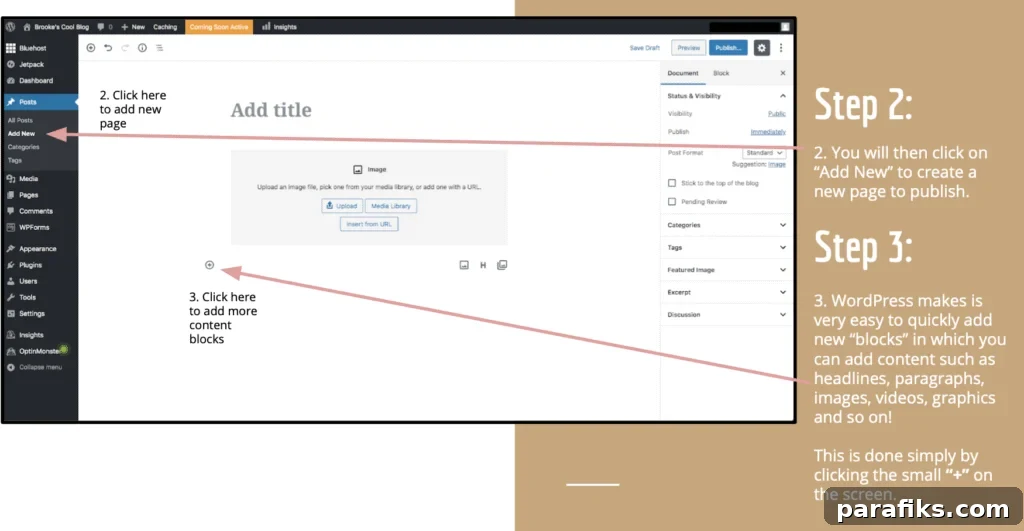
Click “Add New” under Posts to open the post editor and begin a new blog post.
Step 3: Write and format your content
The WordPress block editor makes it easy to add different types of content. Use the “+” button to insert blocks for headings, paragraphs, images, galleries, videos, lists, quotes, and more. Arrange and edit blocks to build your post layout quickly.
Step 4: Set publishing options
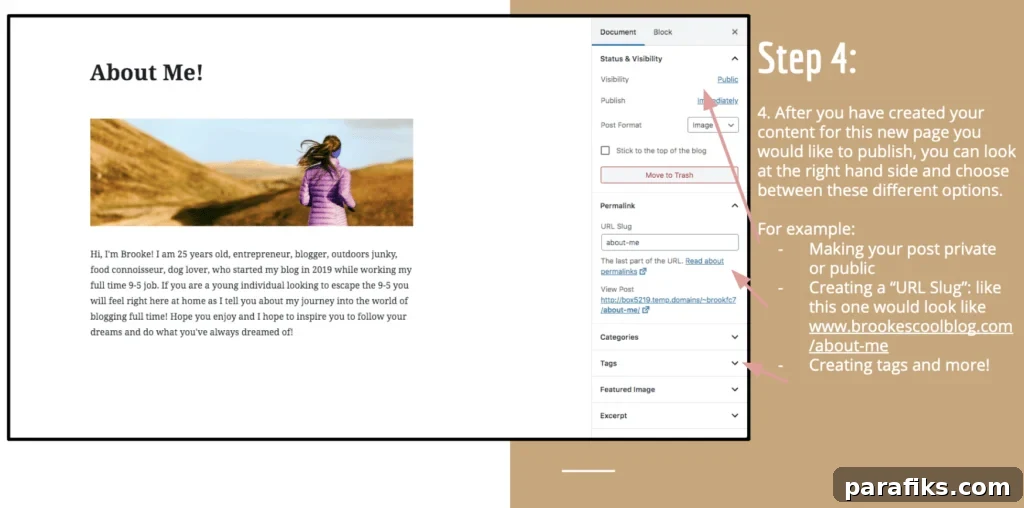
On the right-hand side of the editor you’ll find settings that control how and where your post appears. Common options include:
- Visibility: choose whether the post is public, private, or password-protected.
- Permalink (URL slug): edit the post’s URL so it’s short and descriptive (for example: /about-me).
- Categories and tags: organize your post so readers and search engines can find it.
- Featured image, excerpt, and other metadata depending on your theme and plugins.
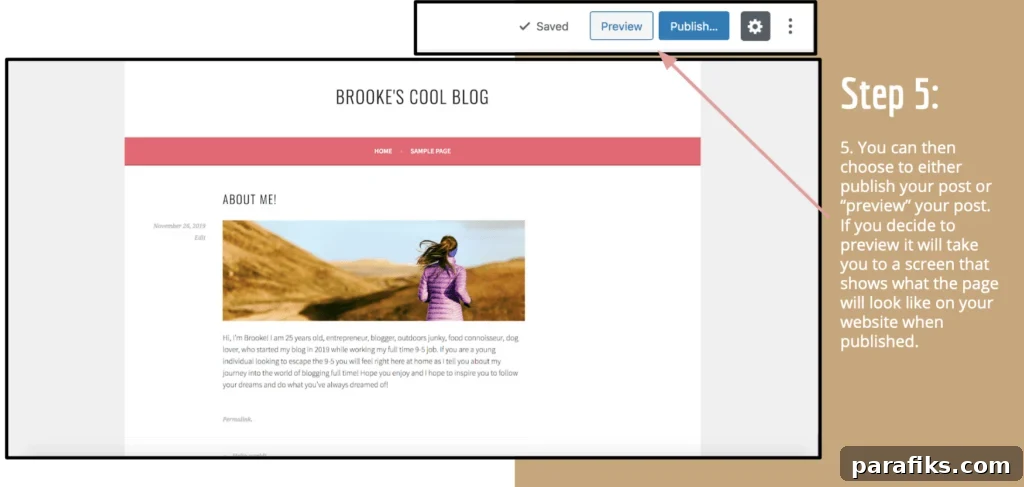
Step 5: Preview your post
Before publishing, click “Preview” to see how the post will appear on your site. The preview shows the actual layout and formatting so you can check spacing, images, headings, links, and any embedded media.
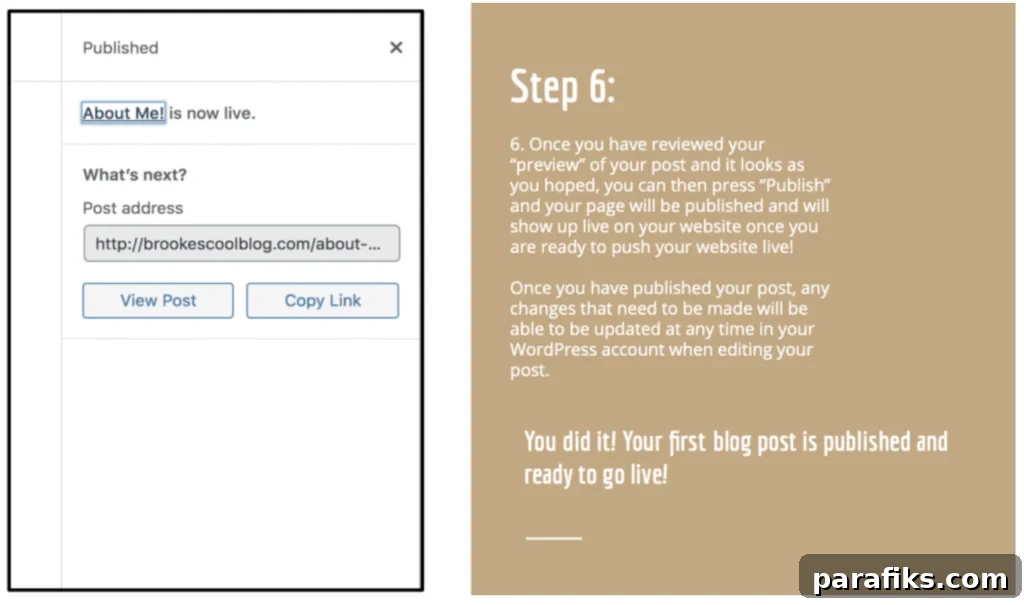
Step 6: Publish
When you’re satisfied with the preview, click “Publish.” Your post will go live immediately if your site is already public. If you want more control, you can schedule the post to publish at a later date and time.
After publishing, you can always return to the editor to update content, change images, or adjust settings — edits can be made any time and republished.
And that’s it — publishing your first blog post on WordPress is that simple. With a few practice posts, you’ll become faster and more confident.
Do you have a blog?