Are you wondering how to launch your website in WordPress?
 If your homepage still displays a “Coming Soon” message and you’re not sure how to remove it, don’t worry — launching your WordPress site is straightforward and only takes a few clicks.
This guide will walk you through launching your website in WordPress using the Bluehost plugin. If you haven’t set up a blog yet, consider starting with a beginner-friendly tutorial on how to create a WordPress blog and choose hosting before following these steps.
Related resources to help you get started with blogging:
- How To Start A Blog Free Course
- How To Earn Money Blogging: Your Top Questions Answered
- How To Start A WordPress Blog On Bluehost
- 12 Free Resources To Grow Your Blog Fast
- How To Write and Publish Your First Blog Post On WordPress
How to launch your website in WordPress
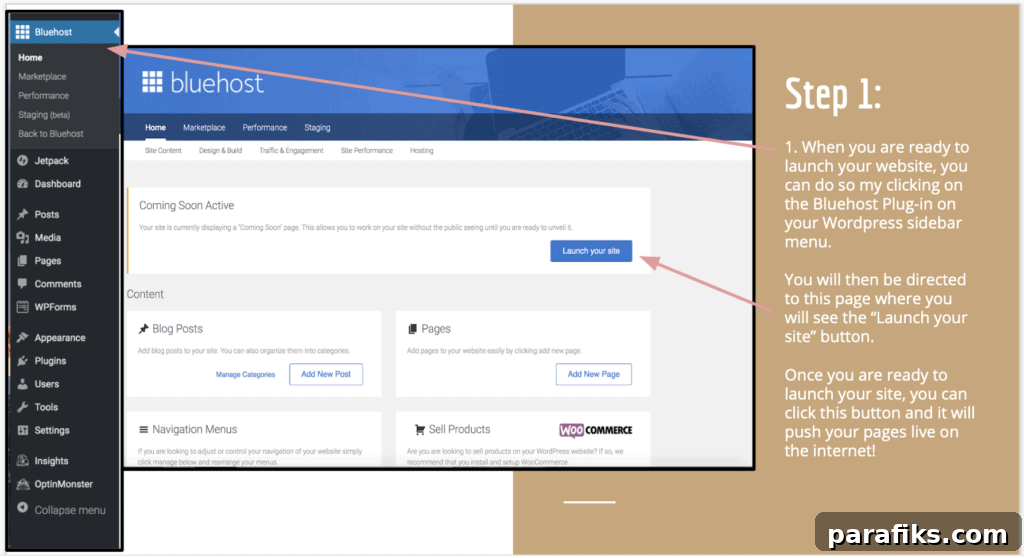
Step 1: Locate the “Launch your site” button
Open your WordPress dashboard and click the Bluehost plugin in the sidebar menu. That will open the Bluehost control panel inside WordPress where you’ll find a prominent “Launch your site” button. Clicking this will push your pages live so visitors can access your site on the internet.
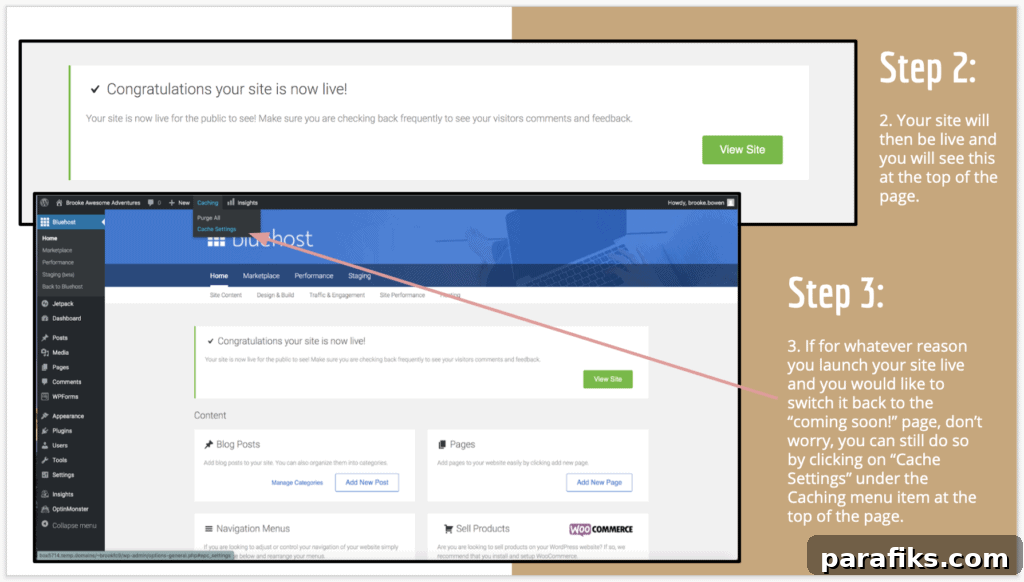
Step 2: Confirm your site is live
After clicking the launch button, your site will go live. The Bluehost interface will indicate the change at the top of the page, confirming visitors can now access your website. At this point, verify your homepage and a few key pages to ensure everything appears as expected.
Step 3: Changed your mind?
If you decide you want to revert to a “Coming Soon” page after launching, you can do that easily. From the Bluehost panel, click “Cache Settings” under the Caching menu at the top. This area gives you control over the coming soon functionality and caching behavior that can affect how your site displays.
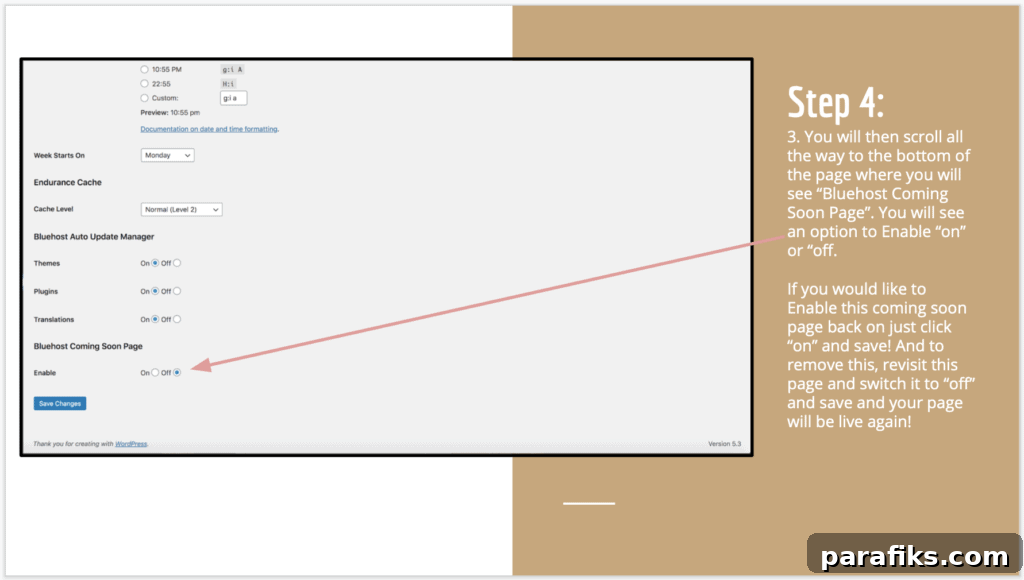
Step 4: Enable or disable the Coming Soon page
Scroll to the bottom of the Cache Settings page to find the “Bluehost Coming Soon Page” option. You can toggle this setting to “on” to display the coming soon page again, then save your changes. To make the site live once more, switch it back to “off” and save. This toggle gives you quick control over whether the public sees your site or a temporary coming soon message.
That’s all it takes — your WordPress site is now launched. After launching, double-check your site on desktop and mobile, review permalinks and SEO settings, and clear any caching if changes don’t appear right away.
Do you have a blog?