Want to learn how to create and set up your blog email? Here’s a clear, professional guide to creating a custom email address for your blog domain.
Would you prefer a custom email like [email protected] instead of a generic [email protected]? A domain-based email makes your blog or business look professional and builds trust with readers and partners. Setting one up is simple, and you have two reliable options: a free email account through your hosting provider (Bluehost) or a paid Google Workspace (formerly G Suite) account.
If you haven’t launched a blog yet, start with a detailed tutorial such as How To Start A WordPress Blog to get your site and domain ready.
Related resources on starting and growing a blog:
- How To Start A Blog Free Course
- How To Earn Money Blogging: Your Top Questions Answered
- How To Start A WordPress Blog On Bluehost
- 12 Free Resources To Grow Your Blog Fast
- How To Write and Publish Your First Blog Post On WordPress
How to create and set up your blog email address
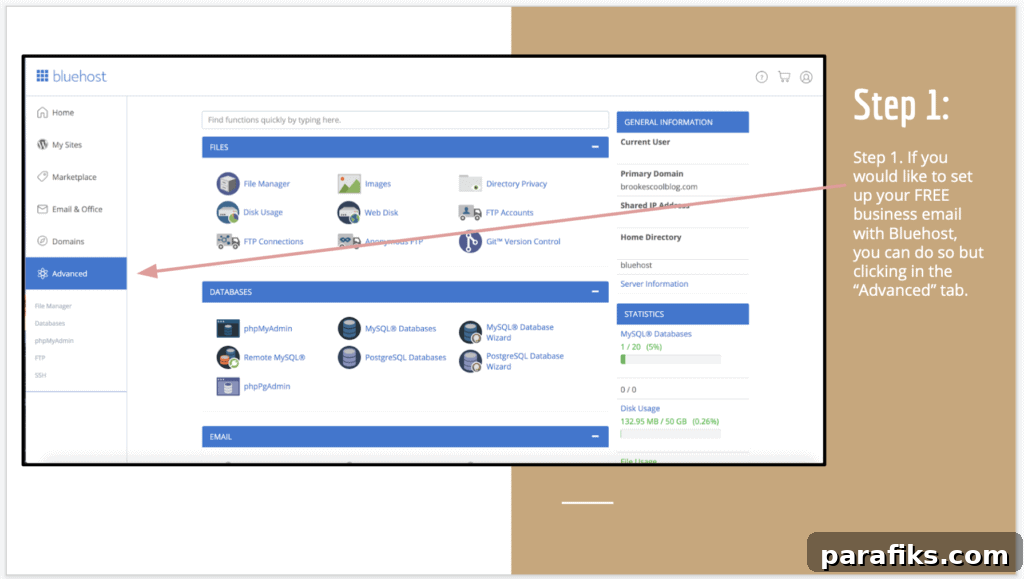
Step 1: Click on the Advanced tab
To create a free custom email with Bluehost, sign in to your Bluehost account and open the cPanel. From there, select the “Advanced” tab to access the hosting control panel options.
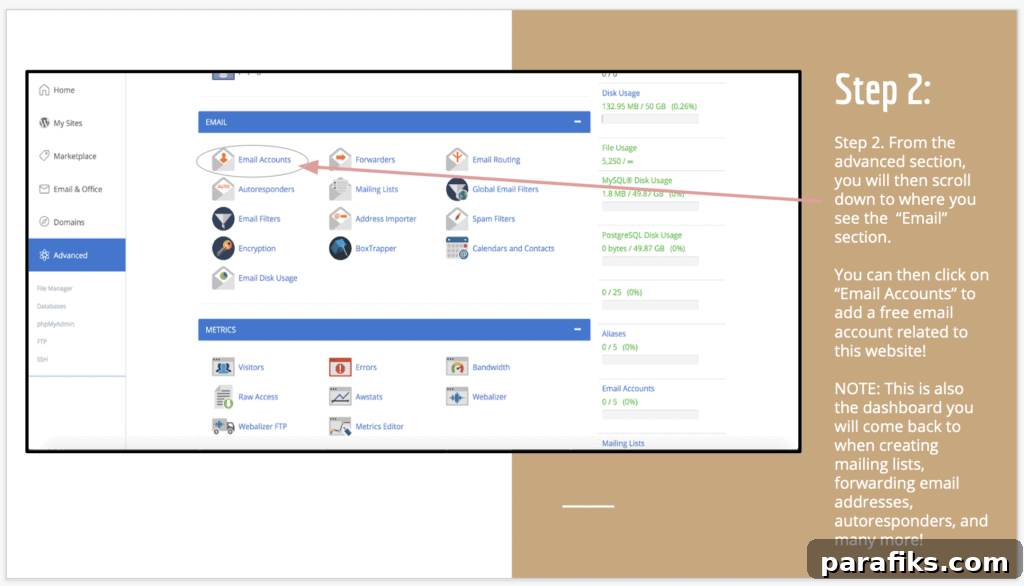
Step 2: Click on Email Accounts
Scroll down to the “Email” section and click “Email Accounts.” This tool lets you create email addresses that use your domain name. You’ll also return here to manage mailing lists, forwarders, autoresponders, and other email settings.
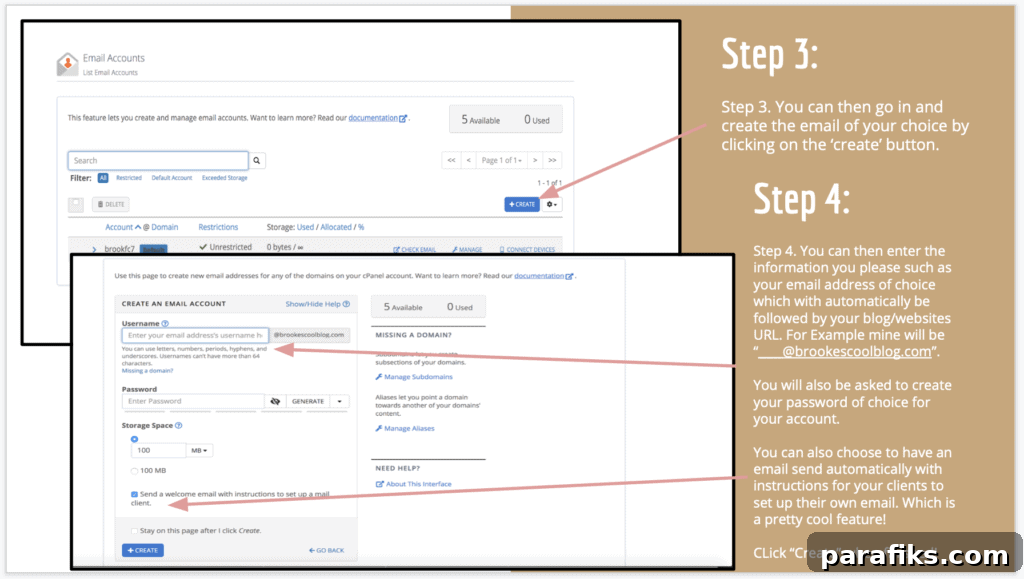
Step 3: Create an email account
Click the “Create” button to start a new email account. Choose the part before the @ symbol—this will be combined with your domain to form the full address.
Step 4: Create your password
Enter the desired email name and set a strong password. Confirm and click “Create.” Your new email account will be added immediately and ready to manage.
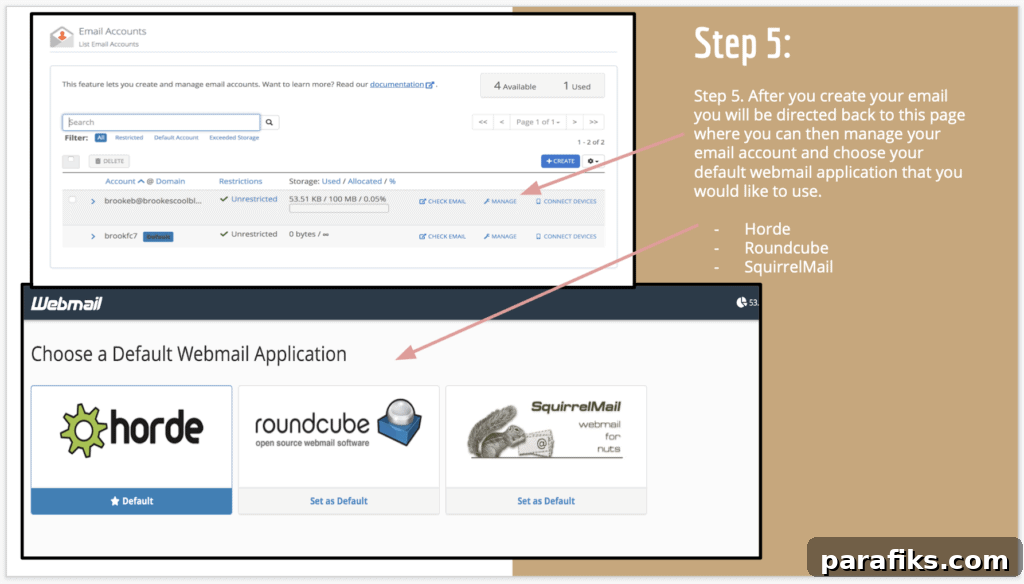
Step 5: Choose your webmail application
After creating the account, go back to the Email Accounts page to manage it. Choose a default webmail application (such as Roundcube or Horde) to access messages through a browser interface.
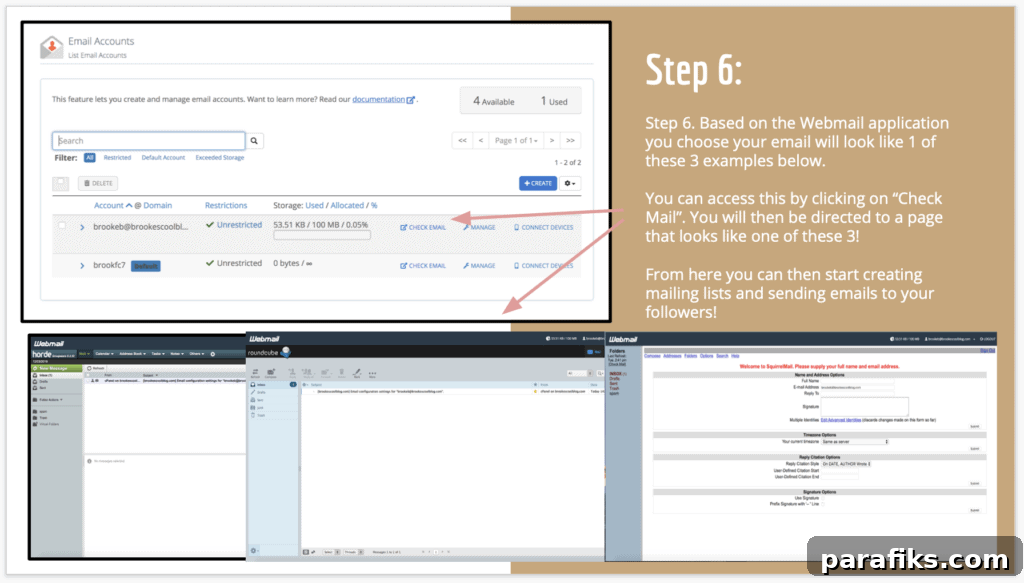
Step 6: How to check your mail
Click “Check Mail” for the webmail app you selected. The interface will vary depending on the app you chose, but you’ll be able to send and receive emails from your new custom address via webmail immediately.
Setting up a paid business email with Google Workspace (G Suite) via Bluehost
If you prefer Google’s interface and collaboration tools, you can purchase Google Workspace through Bluehost. It’s a paid service, but it integrates Gmail, Drive, Calendar, and other Google services with your custom domain. Below are the general steps.
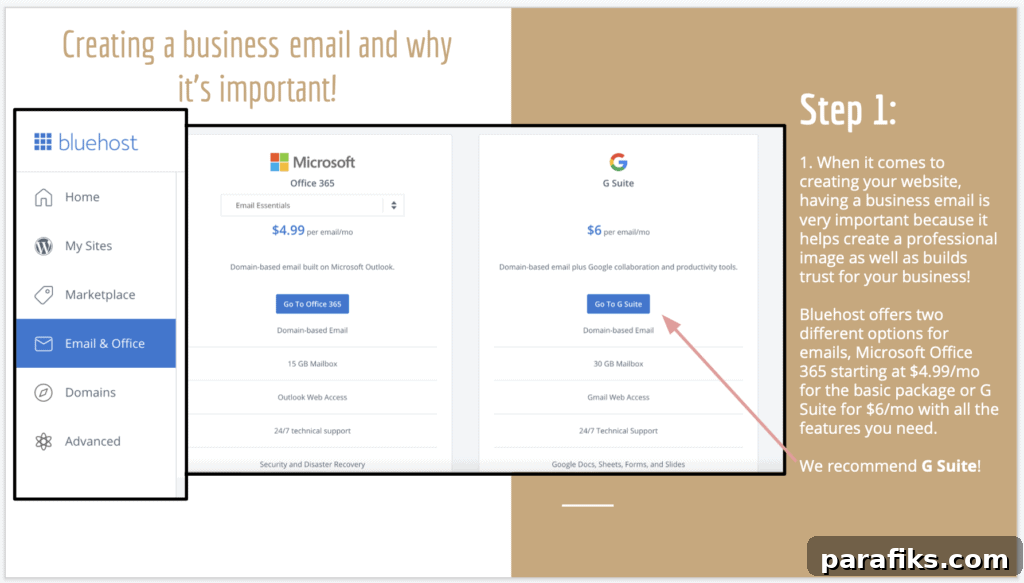
Step 1: Choose Google Workspace
Bluehost offers Microsoft Office 365 and Google Workspace. Google Workspace typically starts around $6 per user per month and includes Gmail, Drive, Docs, and other familiar Google tools. Many users prefer it for its reliability and collaborative features.
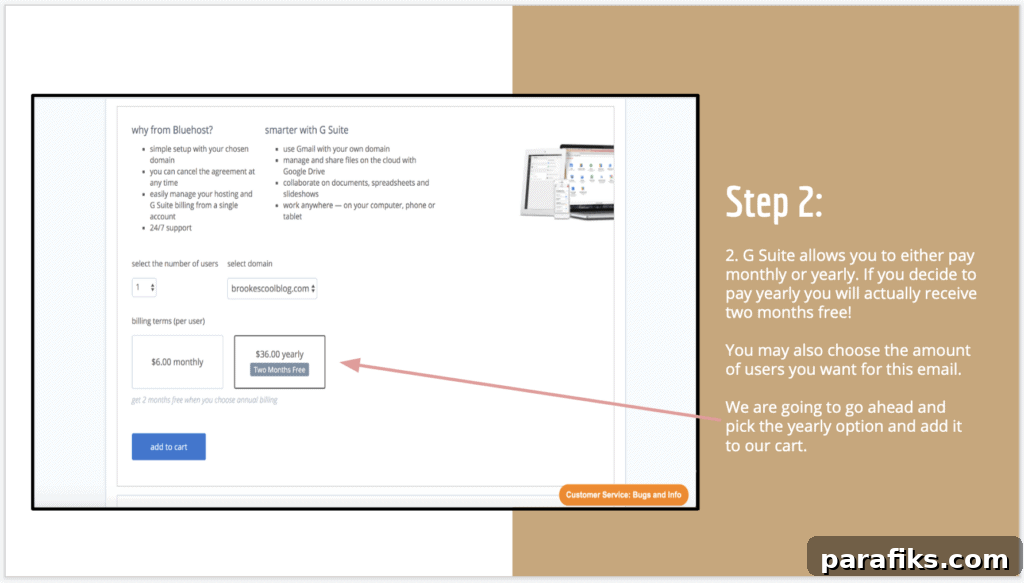
Step 2: Select pricing and users
Choose a billing cycle—monthly or yearly (yearly often gives two months free). Select how many user accounts you need. Each user receives their own custom email address and access to Google Workspace apps.
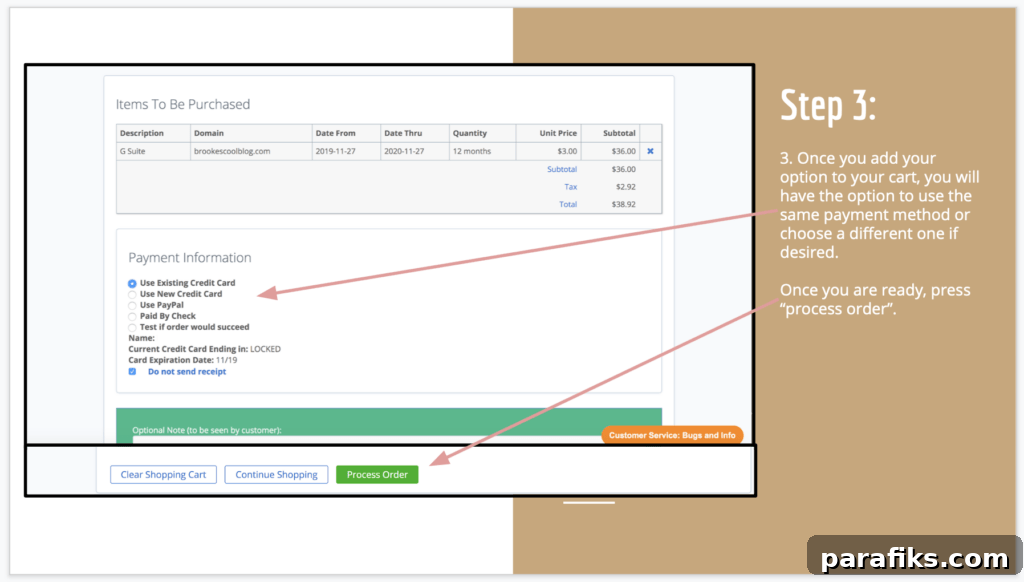
Step 3: Complete payment
Add Google Workspace to your cart, choose a payment method, and process the order. After payment, Bluehost will show an order confirmation and invoice number.
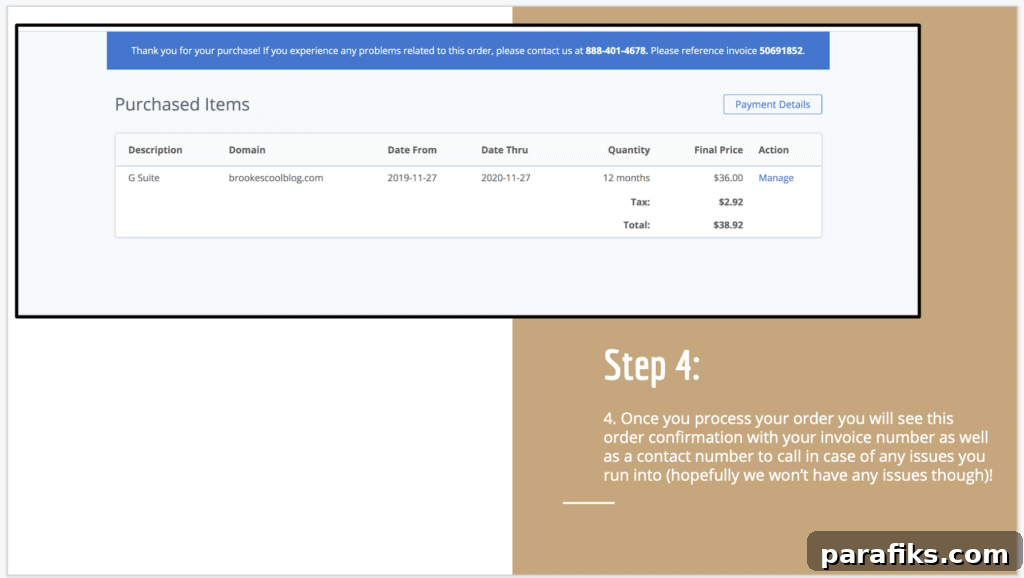
Step 4: Order confirmation and management
On the confirmation page, click “Manage” to configure your Google Workspace setup. This is where you’ll create the actual email accounts and complete any domain verification steps required by Google.
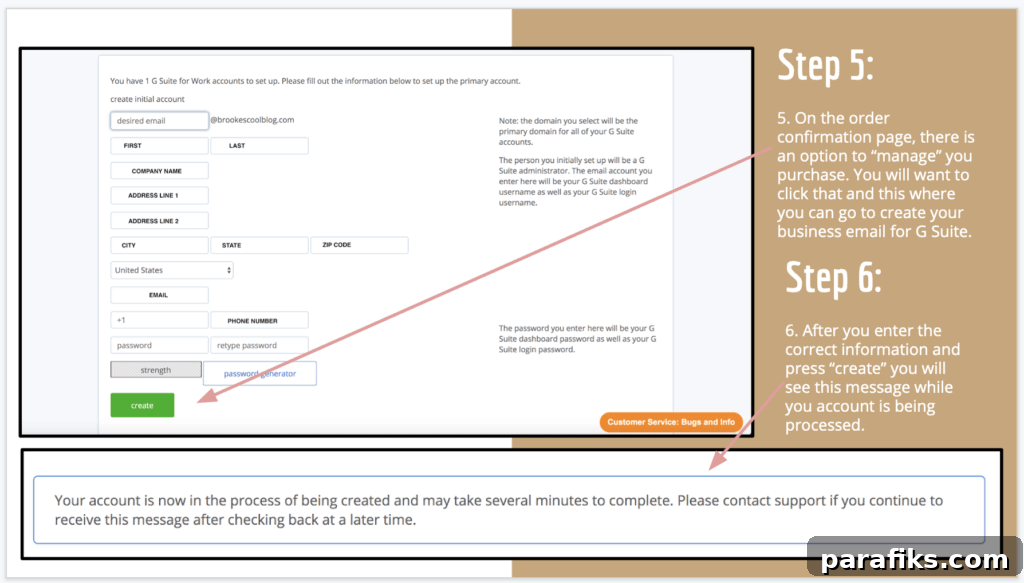
Step 5: Create your business email
Follow the prompts to enter user details and press “Create.” The setup process may take a few moments while Google provisions the account.
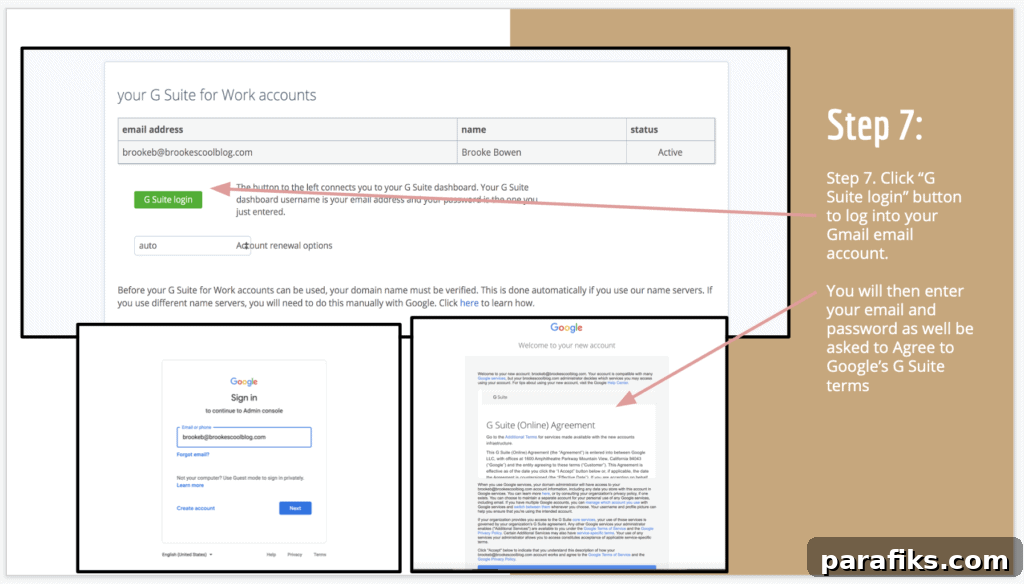
Step 6: Log in to your new business email
Click the “G Suite login” (Google Workspace login) button to access Gmail for your domain. Sign in with the email and password you created to reach your inbox.
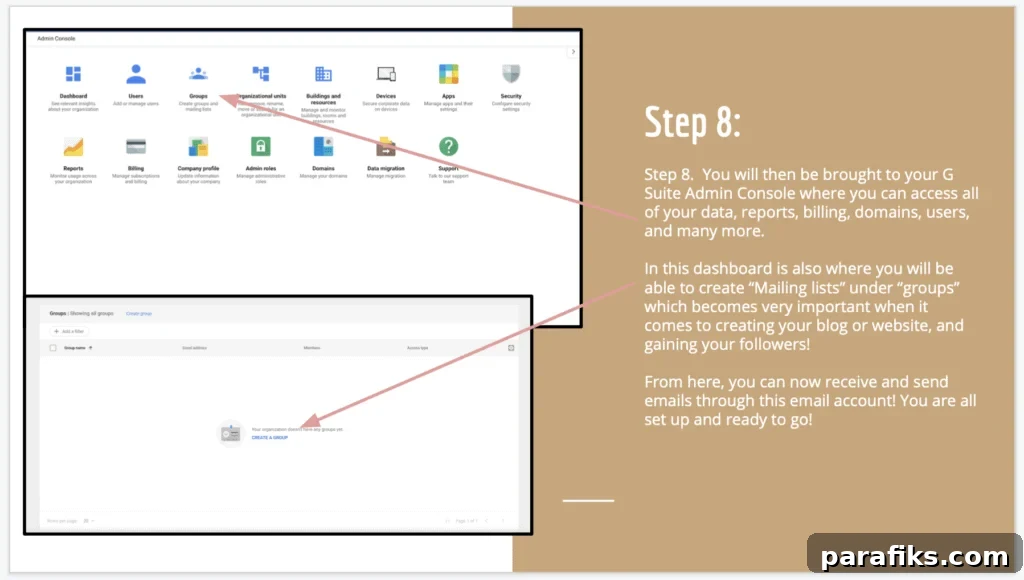
Step 7: Send and receive emails
Once logged in, the Google Workspace Admin Console provides access to billing, domains, user accounts, and usage reports. You can now send and receive messages using your custom domain email through Gmail and enjoy Google’s collaboration tools.
Whether you choose the free email option with your hosting or a paid Google Workspace account, you’ll have a professional, domain-based email that strengthens your blog’s credibility.
Do you have a blog?